How to Fix Lag in Free Fire (2026): Boost FPS & Reduce Ping
Many players face lag during matches while playing Free Fire. Usually, Free Fire is designed to work across many Android devices. It is not the game problem; issues like game lag, low touch response, etc are due to low device compatibility and unstable internet connection.
Most lag issues can be fixed by following some steps that provide smooth gameplay and better response as a result.
Why is there a lag in Free Fire
Free Fire lag isn’t always caused by the game. In most cases, it is due to your device’s performance, settings, internet connection, or storage. By identifying a specific problem, you can choose the right solution.
Common reasons that cause lag are:
A low or an older processor
Not enough Free storage
High graphic setting
Unstable internet
Continuously working of background apps
Understanding the cause of lag is the first step to solving the issue.
Types of Lag
Not every lag is due to the same cause. Some issues are caused by phone hardware, some are caused by touch response, while some are caused by internet connection. Knowing the difference helps you to fix your lag problem.
Graphics Lag
Graphics lag occurs when your phone struggles to render the game visuals.
You may notice:
Low FPS
Screen freezing
Slow animations
Sticking during movement
This type of lag is caused by limited RAM, High Graphics or a low processor.
Network Lag
This lag is caused by a poor or unstable internet connection.
Common signs include:
High ping
Slow or delay player movement
Enemies teleporting or stay freezed
Not match making proper
Network lag is caused by weak internet signals or background downloads that use the same internet connection.
Touch Delay
This delay refers to the time between touch and game response.
During this issue, you may experience:
Slow camera movement
Slow or delayed firing
Unresponsive or slow controls
Touch delay may be due to background apps, overheating of devices, or an overloaded touch screen.
Method to solve the Lag problem
Now, maybe you have understood the cause of lag on your device. You can follow these methods to fix your issue.
Close Background Apps
Background running apps continuously use device RAM, processor, and battery. These apps reduce the available resources to run the game, that cause frame drops, slow loading, etc.
Before launching the game, you need to:
Close unnecessary apps
Stop background downloads
Disable apps that automatically run in the background
Restart the game after clearing
Free Storage Space
Insufficient storage slows down device and game performance. Due to less storage, the game cannot manage the files that are needed to run the game smoothly.
To improve performance:
Delete unused data
Remove duplicate data
Clear unnecessary downloads
Empty trash if available
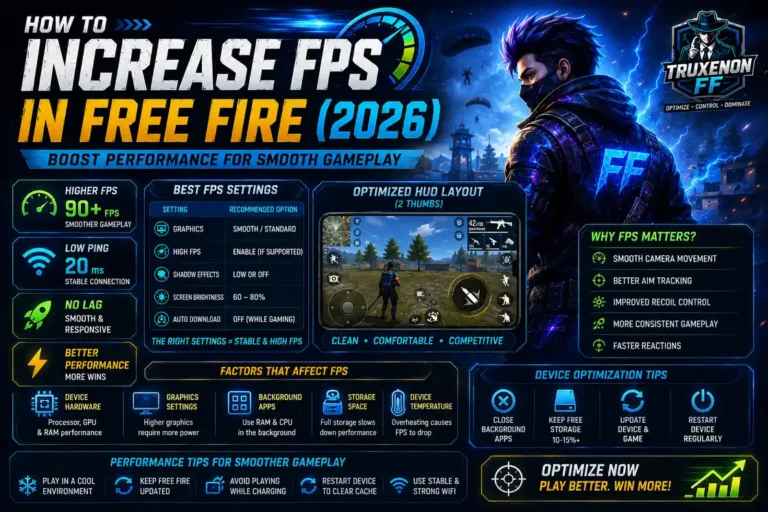
Keep at least free storage up to 10–15%
Graphics Settings
Selecting the right graphic setting can improve gameplay a lot. High graphics consume more power, which may not be supported by your device.
For the balance between visuals and performance:
Choose the graphic setting: smooth or standard
Enable High Graphics if your device supports
Turn off unnecessary visuals
Restart the game after changing settings
Use a Stable Internet Connection
A smooth and stable internet connection is necessary for online games. It is necessary if you have a high-end device; otherwise, it will affect your gaming performance.
To Fix network issue:
Connect to the reliable WiFi connection
For mobile data, ensure you are using strong 4G or 5G signals
Pause downloads on the devices that use the same connection
Move closer to the router if the signal strength is weak
Restart Device
If you are using your phone for a long time, unnecessary background processes and temporary files build up and affect overall performance. A simple restart works a lot to improve device performance.
Before starting the game:
Restart your phone
Wait for the device to finish loading
Launch only Free Fire
Restarting your device improves performance, as after a restart, your device completely refreshes.
Update Free Fire
Garena releases updates regularly to improve games, fix bugs, and optimize compatibility with all devices. Running an outdated version may be the reason for game lag, crash and other issues.
To run the game smoothly:
Install the latest Free Fire Version
Allow the game to download the required resources
Restart the game after the update
Optimize Device Performance
Optimizing your Android device improves Free Fire performance. Small changes significantly help devices to maintain resources and performance to provide a better gameplay.
Changes to optimize the device include:
Enable Game Mode if available
Turn off Battery Saver
Keep your phone cool
Avoid to play during charging
Common Mistakes
Many players can make mistakes that increase lag, not reduce it. By avoiding these habits, you can improve your overall performance.
Common mistakes include:
Playing with high graphics on low-end devices
Continuously changing graphic settings
Playing with an overheated phone
Conclusion
Lag makes Free Fire Gameplay less enjoyable. Most performance issues can be fixed by simple methods like closing background apps, restarting apps, using a stable connection, and keeping the game updated.
Remember that every issue cannot be fixed by a single method. Follow this guide to identify your lag issue and fix it using a specific method.