How to Increase FPS in Free Fire (2026): Boost Performance for Smooth Gameplay
Low FPS can be the reason if your gameplay lag freeze during the match. FPS is one of the biggest factor that determines how your game runs and responds. Higher and stable FPS improves aiming, camera movement, and gives a better gaming experience.
By applying the right settings, you can achieve stable and high FPS. What FPS is, why it matters, and its improvements are discussed in this guide.
What Is FPS?
FPS stands for Frames Per Second. It determines how many images can be displayed on the device every second while playing. The higher FPS appears to be a smooth game. A stable FPS is important, not an unstable FPS with high numbers.
Frequent changing of FPS makes your aiming difficult, slows your reaction, and affects overall gaming performance.
Why FPS Matters
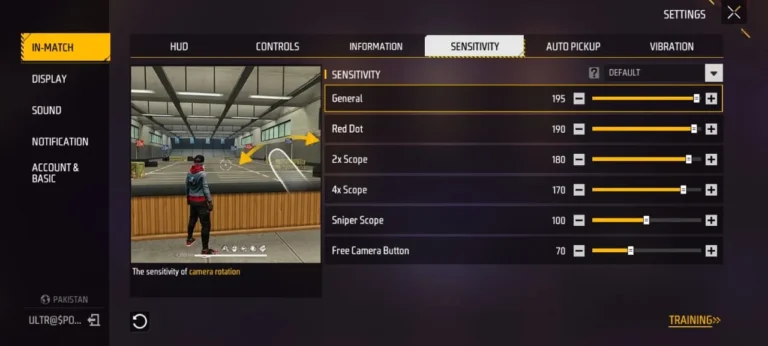
Higher FPS does not make you a pro player. It creates a smooth and responsive gaming experience. Stable FPS helps to react quickly and maintain controls during the game. Once your game runs smoothly, adjusting your Free Fire sensitivity settings can help improve aiming accuracy and overall control.
A stable FPS offers several gameplay advantages, including:
Whether you are playing BR or CS, maintaining FPS is important to enjoy and win the game.
Factors That Affect FPS
Several factors determine how many frames your device can make in one second. By understanding those factors, you can easily increase FPS.
Device Hardware
Your phone’s processor, graphics chip, and RAM have the biggest impact on the game FPS. Devices with powerful processors can handle high graphics and provide stable FPS.
Graphics Settings
Higher graphics require more power. If your device does not support high graphics, then it may be the reason for the FPS problem.
Background Apps
Background apps are also the cause of Low FPS as they consume the available resources. If you’re experiencing stuttering or delayed gameplay in addition to low FPS, follow our guide to fix lag in Free Fire for a complete performance boost.
Available Storage
Full storage can slow down device performance and affect performance. Keeping enough storage helps the game to manage game files efficiently.
Device Temperature
Android overheating is the main reason for lower FPS. When the device becomes hot, many processors reduce their work to prevent any damage.
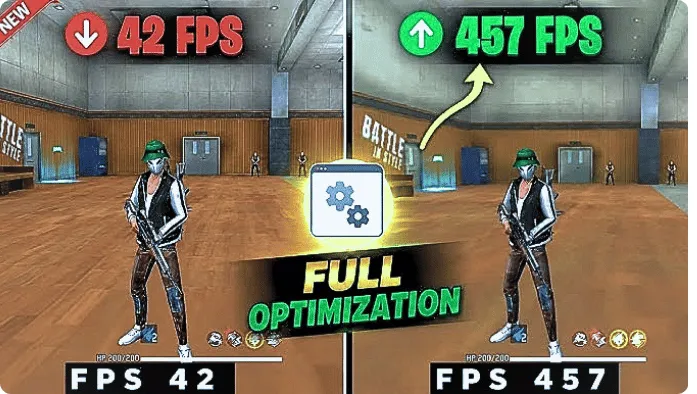
Best FPS Settings
Choosing the right setting can solve all your FPS issues. Instead of using high graphics, use the balance setting that your device can easily manage.
These are recommended settings for most Android devices:
| Setting | Recommended Option |
| Graphics | Smooth or Standard |
| High FPS | Enable (if supported) |
| Shadow Effects | Low or Off |
| Screen Brightness | 60–80% |
| Auto Download | Off while gaming |
These settings help to maintain consistent FPS during the game and reduce the workload on your device.
Graphics Optimization
Graphic optimization has a great effect on FPS. If the device struggles to render visuals, lowering graphic settings can improve FPS.
To optimize better graphics:
Set up graphics to smooth on low-end devices
Use standard graphics on mid range device
Enable high graphics if your device supports it
Restart the game after changing settings
Device Optimization
Device optimization can also improve FPS if it is optimized in a better way. To optimize your device, you can follow the following settings:
Close all unnecessary background apps
Restart your phone after a long gaming session.
Keep free storage at least 10-15%
Keep your device updated with the latest version
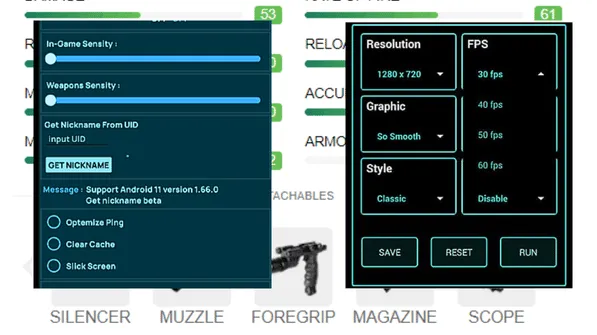
If you’re considering using an optimization app, you can compare TruxenonFF with other optimization tools to find the best option for your device.
Performance Tips
Along with optimizing settings, simple habits can reduce frame drops and improve FPS.
Play in a cool environment to prevent overheating of the device
Keep the Free Fire latest updated version
Avoid playing while charging
Restart your device to clear temporary data
Use a stable and strong WiFi connection
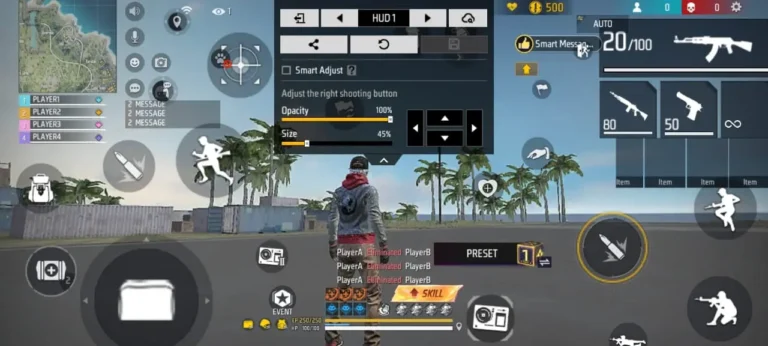
Following these habits helps to maintain FPS and consistent gameplay in every match. Pair these improvements with optimized Free Fire control and HUD settings to make your movements and reactions even more consistent.
Conclusion
To improve Free Fire FPS, there is not always a need to buy a new phone. It can be done by some habits and applying some settings. BY keeping the phone tuned, most of the FPS-related issues can be solved.
By choosing the right combination of game settings, device optimization, and maintenance, you can get a more responsive Free Fire gameplay.
You can also improve overall performance with TruxenonFF APK, which provides additional optimization features for compatible Android devices.